
People searching for Xpertv APK for PC usually have a very specific intent: they already know the app from Android or have seen it mentioned, but they want to use it from a laptop or desktop computer. The short answer is that you do not need to look for a separate EXE installer. Xpertv works as an Android APK, so on PC it is normally run through an Android emulator. Understanding this difference helps you avoid fake files, duplicate downloads, or versions that claim to be for Windows without explaining their source.
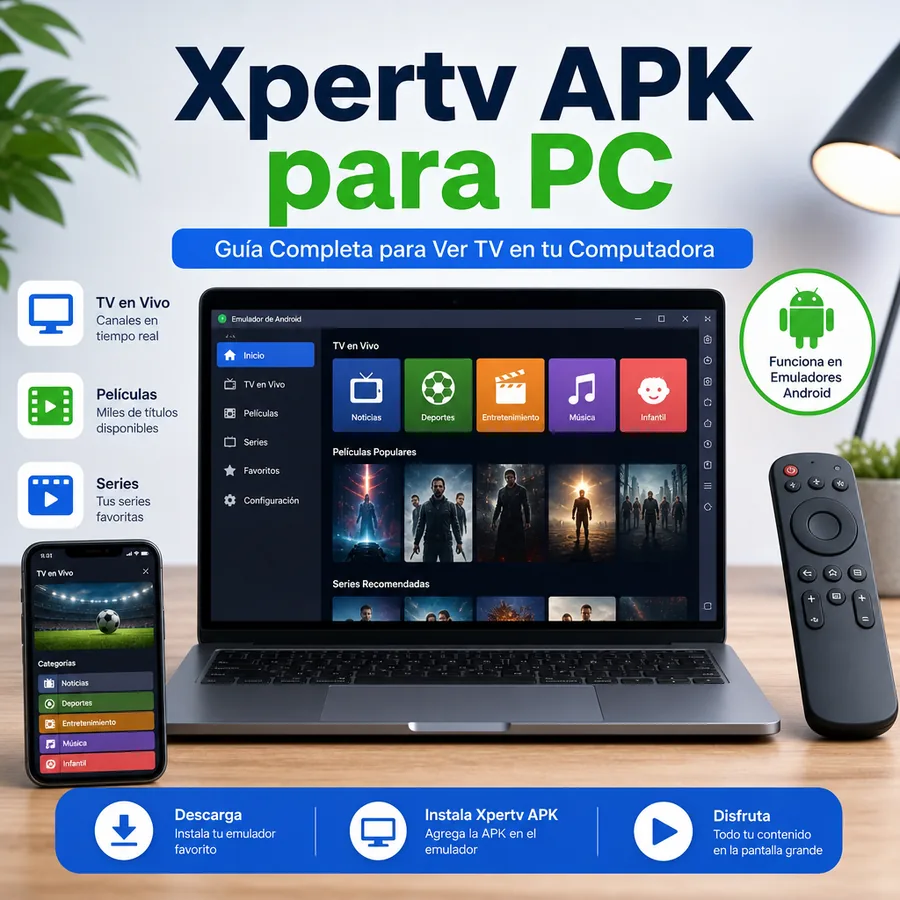
Is there an official Xpertv version for PC?
Based on how the Android ecosystem works, Xpertv is distributed as an APK file. That means it is designed for Android TV, Android-based Smart TV, Firestick, phones, tablets, and TV Box devices. A Windows or Mac computer does not install APK files natively, so it needs an intermediate layer: an Android emulator.
This distinction helps prevent a common mistake: searching for Xpertv APK PC download and ending up on pages that offer similarly named executables. In a safer setup, the correct flow is to download the APK from the relevant page and then open it inside a trusted emulator. The main file remains Android-based; the PC only provides the runtime environment.
If your goal is to use a television, you do not need this PC guide. In that case, the logical route is the Xupertv APK page for Android TV and Firestick, because it uses an interface adapted for remote control. If you want to watch on a laptop while working, studying, or using an external monitor, then the emulator method makes sense.
Recommended requirements before installing Xpertv on PC
To use Xupertv for PC reliably, free storage is not enough. The most important point is whether the emulator can play video without interruptions. On older computers, the app may open but fail when changing channels, show a black screen, or consume too much memory.
As a practical reference, use Windows 10, Windows 11, or a recent version of macOS, at least 4 GB of RAM, and 8 GB if you want to keep a browser, emulator, and other apps open. On Windows, it is also recommended to enable virtualization in BIOS or UEFI because many Android emulators depend on it for better performance.
For technical confirmation, you can compare your emulator setup with the official Android Emulator documentation and review Microsoft's virtualization guide for Windows. Those sources do not replace this usage guide, but they help validate system requirements when an emulator does not start or runs slowly.
The internet connection is still decisive. Standard definition may work with around 3 Mbps, but for HD it is better to have 5 Mbps or more. If you connect the computer by Ethernet cable or use 5 GHz WiFi, the experience is usually more stable than on a crowded network.
| Element | Reasonable minimum | Recommended |
|---|---|---|
| System | Windows 10 or recent macOS | Windows 11, updated macOS |
| RAM | 4 GB | 8 GB or more |
| Storage | 5 GB free | 10 GB free |
| Internet | 3 Mbps | 5-10 Mbps for HD |
| Method | Android emulator | Emulator with virtualization enabled |
Best method: use Xpertv APK on PC with an Android emulator
An Android emulator creates a virtual Android device inside your computer. From there, you can open the APK file just like on a phone. For Xpertv on PC, the most reasonable approach is to treat the installation like a large-screen Android phone: install the emulator, import the mobile APK, allow basic permissions, and adjust orientation or resolution.
Not all emulators behave the same. Some are designed for games and use more resources; others are lighter but offer fewer compatibility options. If your PC has limited RAM, choose a simple configuration: 720p resolution, fewer assigned cores, and closed background apps. If your computer is modern, you can increase resolution and use full screen.
The mobile version is usually the most logical choice for PC because it adapts better to mouse, keyboard, and emulator windows. The TV version is designed for remote controls and living-room screens; it may work in some emulators, but it is not always the most comfortable experience.
| Option | When to use it | Conflict risk |
|---|---|---|
| Mobile APK in emulator | Laptop, desktop, mouse use | Low |
| TV APK in emulator | Occasional tests or TV-style interface | Medium |
| Unknown EXE installer | Not recommended | High |
| TV Box or Firestick | Use the TV download page | Low if not mixed with PC use |
Steps to install Xpertv APK for PC
The full process is simple if you keep one rule: prepare the emulator first, then install the APK. Do not try to open the APK file directly in Windows because the system cannot run it without compatible software.
Start by installing a recognized Android emulator from its official website. Then open it, complete the initial setup, and confirm that it has internet access. Download the mobile APK from the relevant page on this site and drag the file into the emulator window, or use the APK install option if the program provides one.
When installation is complete, open Xupertv from the emulator's app menu. If the screen appears rotated, switch the orientation to landscape or portrait as needed. For fewer interruptions, close browser tabs, media players, and programs that consume memory or network bandwidth.
1. Install a trusted emulator
Download it from its official source and avoid modified packages or third-party repackaged installers.
2. Use the mobile APK
On a computer, the mobile version usually responds better to mouse and keyboard than the TV version.
3. Adjust performance
If playback cuts out, lower emulator resolution, enable virtualization, and use a more stable network.
PC vs mobile vs Smart TV: which option suits you?
Using Xpertv APK for PC is not always the best option. It is useful when you want to use a laptop screen, watch on an external monitor, or keep the app open while doing other tasks. It can also help users who do not have an Android device available.
On the other hand, if you want daily convenience, a phone is more direct: install the APK and start using it. If your priority is watching in the living room with a remote, Smart TV, Android TV, or Firestick usually offers a more natural experience. That is why this site separates the paths: mobile for phones and tablets, TV for large screens, and this tutorial for people who need to use a computer.
| Device | Main advantage | Best page |
|---|---|---|
| Windows PC or Mac | Large screen and multitasking | This guide |
| Android phone | Direct and portable installation | /download-mobile |
| Android TV or Firestick | Remote control and living-room viewing | /download-tv |
| TV Box | Fixed use on a television | /download-tv |
Common problems using Xpertv on PC and how to fix them
If Xpertv opens but does not play video, check the connection first and then the emulator's graphics settings. Switching between OpenGL, DirectX, or compatibility mode can fix black screen issues on some Windows computers. On Mac, the adjustment options depend on the emulator and whether the machine uses Intel or Apple Silicon.
If there is no sound, confirm that Windows or macOS has not muted the emulator in the audio mixer. It is also worth trying another channel or restarting the app, because not every audio issue comes from installation. If the APK does not install, download the file again and confirm that the emulator uses a compatible Android version.
When buffering is the problem, do not increase the emulator resolution. Do the opposite: reduce quality, close active downloads, and use a more stable network. On computers with little RAM, restarting the PC before opening the emulator can make a noticeable difference.
| Problem | Likely cause | Practical fix |
|---|---|---|
| Black screen | Incompatible graphics engine | Change the emulator graphics mode |
| No sound | Muted audio or channel without audio track | Check mixer and try another channel |
| APK will not install | Incomplete file or incompatible Android version | Download again and update emulator |
| Buffering | Slow network or overloaded PC | Lower quality and close background apps |