
When Xuper TV stops working, the safest fix is not another random download. First identify whether the failure comes from your network, the APK file, unknown-app permissions, the device, or the account session. A short diagnosis prevents unsafe clones and unnecessary reinstalls.
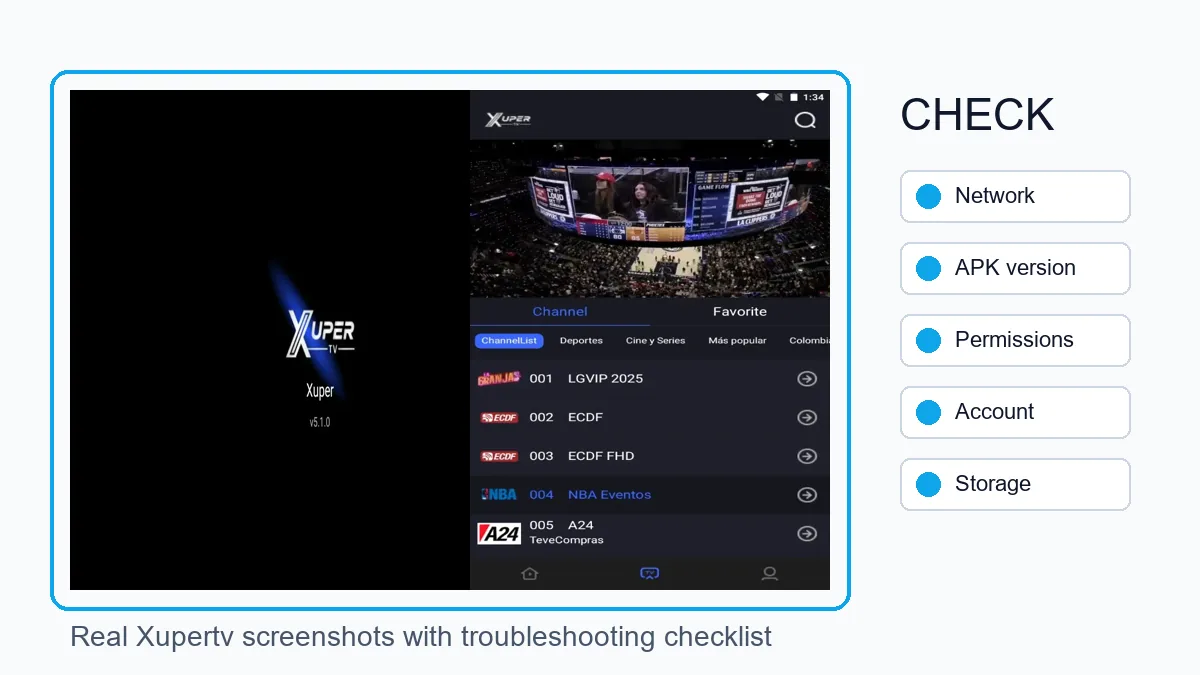
Quick answer: what to check first
Start with the basics: close Xuper TV, restart the device, and confirm whether other streaming apps load. If YouTube or another app also fails, the issue is probably network-related rather than Xupertv APK itself.
If other apps work, confirm that you installed the right build. The TV version is for Android TV, Google TV, TV Box, and Firestick; the mobile version is for Android phones. Mixing builds can cause broken controls, black screens, or crashes.
| Symptom | Likely cause | Safe first step |
|---|---|---|
| Will not open | Damaged cache or wrong version | Force stop, clear cache, restart |
| Parse error | Incomplete or incompatible APK | Download the correct version again |
| Endless loading | Slow network, DNS, or temporary congestion | Try another network and wait |
| No audio or video | Low memory or stuck player | Close apps, free storage, restart |
| Account prompt | Expired session or pending registration | Check account details safely |
7 common causes behind Xuper TV failures
Most failures fall into seven groups: unstable connection, incomplete APK, wrong version, missing installation permission, damaged cache, low storage, and account session issues. Separating them avoids deleting everything unnecessarily.
For Spain-specific searches, test whether the problem appears on one internet provider, one channel category, or every device at home before assuming a permanent service block.
Unstable connection
Switch between 2.4 GHz WiFi, 5 GHz, mobile data, or Ethernet to isolate network issues.
Incomplete APK
A file cut off during download often causes parse errors or blocked installation.
Wrong build
Use the TV version on big-screen devices and the mobile version on Android phones.
Account session
If a login appears, use the account guide and avoid suspicious external forms.
Step-by-step fixes before reinstalling
Force stop the app from Settings, clear cache, and reopen it. If the problem started after an update, restart the whole device to free memory and close stuck background processes.
Then confirm automatic date and time. Many apps fail to connect when the device clock is wrong. Leave at least 1 GB free on TV Box or Firestick so the system can install and stream reliably.
| Step | What to do | When to continue |
|---|---|---|
| 1 | Restart device and router | If all apps remain slow |
| 2 | Clear Xuper TV cache | If only this app fails |
| 3 | Check TV or mobile version | If controls or playback break |
| 4 | Update or reinstall from the right route | If the APK is damaged |
| 5 | Try another network or DNS | If it loads but will not play |
What to do if Xuper TV is not working in Spain
If the issue appears only in Spain, test another network first: mobile data, another WiFi, or Ethernet. A changed result points to ISP, DNS, or temporary congestion rather than the APK file.
Avoid patches that claim to fix Spain access from unknown pages. Check the current version, clear cache, and see whether only some channels fail before replacing files.
Specific errors: parse error, black screen, buffering, and login
A parse error usually means the APK is incomplete, incompatible with the Android version, or interrupted during download. Delete the old installer before downloading again.
A black screen often comes from low memory, a stuck video player, or an app process that did not close cleanly. On TV Box and Firestick, closing background apps and restarting helps more than stacking repeated installs.
| Error | Meaning | Recommended fix |
|---|---|---|
| Parse error | System cannot read the APK | Delete and download the correct version |
| Black screen | Player or memory stuck | Restart and free storage |
| Buffering | Weak network or congestion | Try 5 GHz, Ethernet, or wait |
| Repeated login | Expired session or unverified account | Check email, password, and account guide |
Risk signals while searching for a fix
Do not install files promising included accounts, unlocked premium access, or universal codes. Those claims often hide clones, modified installers, or credential-capture forms.
Keep unknown-app permission enabled only for the browser, Downloader, or file manager you use. After installation, turn it off again if you do not plan to install more files.