
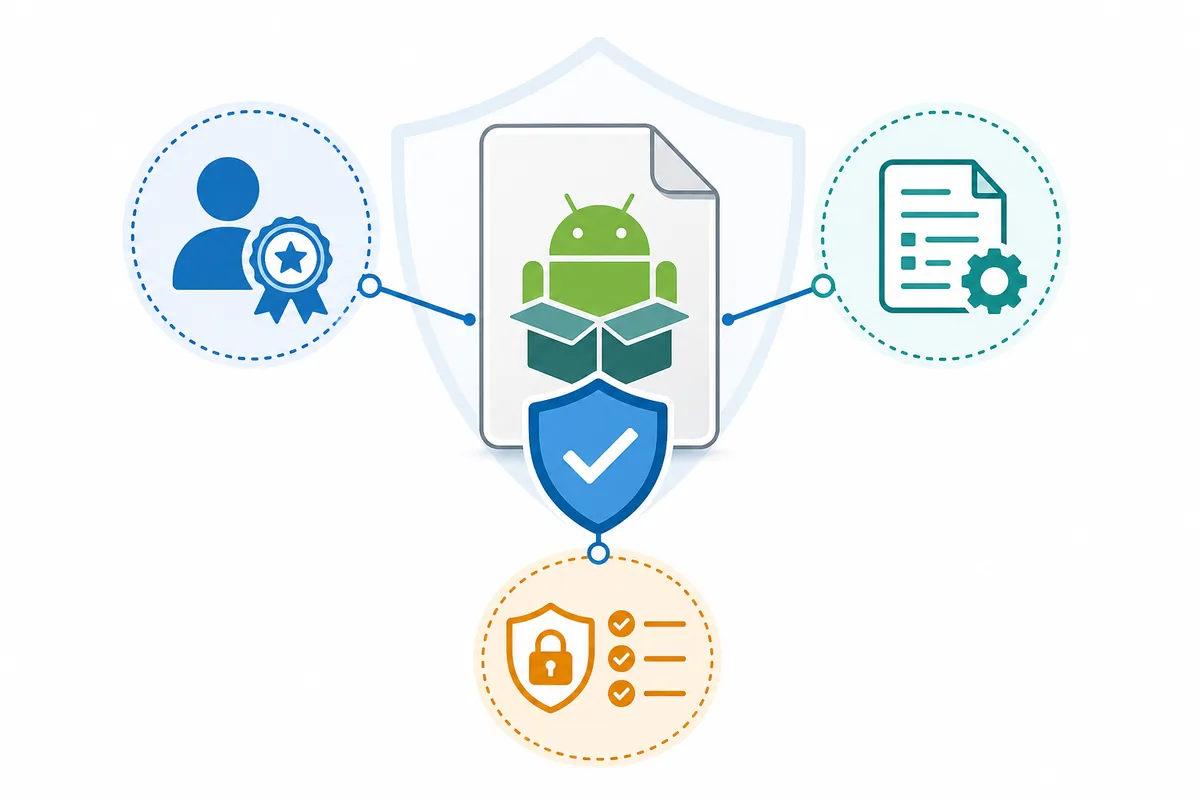
If you search for the original Xuper TV APK, the safest answer is not a new download button. It is a verification process. A page can repeat the same app name, version number or logo without proving who built the file. Before installing, compare the publishing identity, domain, package name, version, file size, permissions and target device. If those details cannot be checked together, treat the file as unverified and do not enter passwords, payment details or redemption codes into it.
What “original Xuper TV APK” can and cannot prove
The word original often appears when several sites publish files with similar names. It can describe the reader’s goal, but it does not identify a developer by itself. A mirror can copy a logo, reuse a screenshot, change the filename or repeat a version number. Those actions create familiarity, not provenance.
Start by separating three questions: is this the app the page describes, who published the package, and is the package safe enough to install? A file may match the first question while failing the second. A page may also show a clean download response without proving that the archive is harmless or that the app is licensed for every region.
For Xuper TV, Xpertv, Xupertv and related spellings, keep the exact product name in your notes, but do not assume that every domain using one of those spellings belongs to the same publisher. The safest article or download page should disclose uncertainty instead of converting a popular name into an official claim.
| Signal | What it tells you | What it does not tell you |
|---|---|---|
| Same logo | The page wants to look familiar | Who compiled the APK |
| Repeated version number | Several pages copy the same metadata | Whether the file is unchanged |
| Working download | A server returned bytes | Whether the publisher is genuine |
| Video or code | Someone demonstrates a route | Package identity or safety |
Check the publisher and domain before the download button
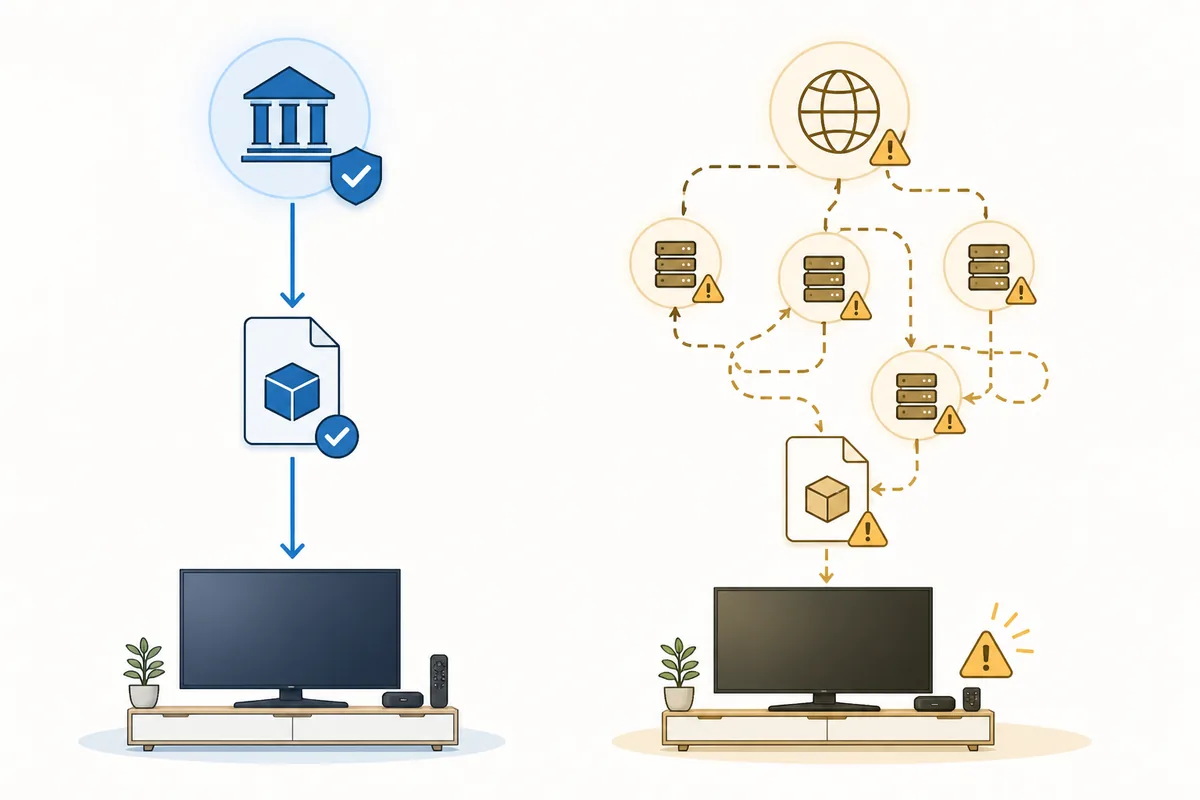
A trustworthy source should explain who publishes the app, which devices it supports, where updates are announced and how users can report a problem. Look for consistent naming across the page, the download destination and the installation instructions. A domain that changes several times during a countdown is harder to verify than a stable page that clearly states what it does not know.
Read the address bar before you click. Shorteners, forced redirects, copied brand names, pop-ups and promises such as premium unlocked or no registration are reasons to slow down. They do not automatically prove that a file is malicious, but they reduce the evidence available to identify the publisher. Save the source page and the final host if you continue investigating.
Do not treat a third-party file page as an official release merely because it has an APK extension. The current project record includes an externally hosted Xuper Hydra file observed on August 20, 2026, but its technical metadata does not establish an official publisher, safety or universal compatibility. That distinction is the standard this article applies to Xuper TV APK searches.
Publisher identity
Look for a consistent organization or developer name, not only a product keyword.
Stable domain
Record the first-party or source domain and notice unexplained redirects.
Clear limits
A careful page explains what it cannot verify instead of promising safety.
Compare package, version, size and permissions
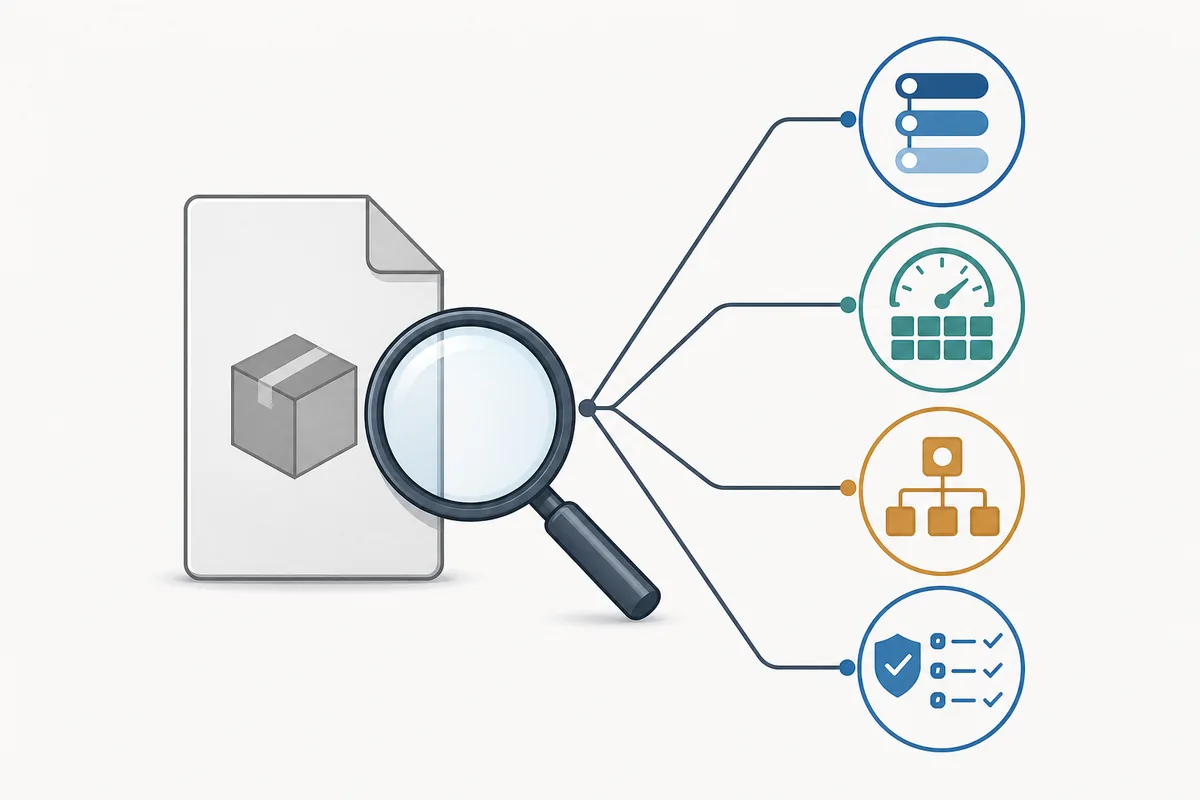
The package identifier is more useful than a filename because Android uses it to distinguish applications. Compare the identifier shown by the installer or app information screen with the identifier published by the source you are checking. If two pages describe the same app but show different packages, stop and investigate rather than assuming one is a harmless update.
Record the version name, version code, file size and check date when they are available. These values are not a safety certificate, but mismatches reveal copied pages, stale links or a file that is not the one described. A version number that appears everywhere without a publisher, release note or stable file should be treated as an unverified claim.
Permissions need the same context. A streaming application may need network access, but unexpected requests for SMS, contacts, accessibility, device administration or unrelated storage deserve a clear explanation. Read the permission screen before granting access, keep Play Protect enabled and do not enter account or payment credentials into a package that fails the identity check.
| Check | Good evidence | Stop when |
|---|---|---|
| Package | The source and installer show the same identifier | The package changes or belongs to another app |
| Version | Version name and code have a dated explanation | Only mirrors repeat the number |
| File size | The observed file matches the published record | The size changes without an update note |
| Permissions | Requests fit the declared video function | Sensitive access has no explanation |
Match the APK to the device you actually use
An APK is an Android package, not a universal installer. Android phones and tablets need a touch-friendly build; Android TV and TV Boxes need a layout that works with a remote; a Windows or Mac computer normally needs an Android emulator. Roku OS and iOS do not turn into Android simply because a page uses the words TV APK.
Use the device compatibility guide when you are unsure which route fits. A TV package may open poorly on a phone, while a mobile package may be difficult to operate from a television remote. If a page promises one file for every platform but does not explain the technical difference, treat that promise as a marketing shortcut rather than proof of an original release.
Compatibility is also part of source verification. A page that accurately names the device, orientation, input method and Android requirement gives you more information to compare. A file that installs but shows the wrong interface, requests unrelated access or fails on the stated platform should not be rescued by downloading another mirror.
| Target | What to confirm | Common mistake |
|---|---|---|
| Android phone or tablet | Touch layout, Android version and storage | Installing a TV-first build |
| Android TV or TV Box | Remote focus, landscape layout and permissions | Using a random mobile APK |
| Windows or Mac | An emulator and a verifiable Android package | Expecting a native EXE |
| Roku or iPhone | A platform-native app or supported cast method | Trying to install an APK directly |
What to do when the original source cannot be verified
The correct next step is often to stop, not to search for a file with a more convincing name. Close pages that add countdowns, ask for unrelated permissions or move across unexplained domains. Keep the exact error, URL and device details if you need help later, but do not share credentials or payment information to unlock a download.
If you already downloaded the file, do not open it just to see what happens. Review the file source, scan it with the security tools available on your device, and delete it if the package or publisher cannot be identified. Google Play Protect can provide warnings, but the absence of a warning is not proof that an unknown APK is official or safe.
When a page cannot verify a stable first-party release, a responsible fallback is a guide rather than a direct file. Use the existing version, device, mobile, TV, PC and troubleshooting pages to clarify the intended route. This keeps the search helpful without turning a third-party mirror into a promise that the site cannot support.
Investigate
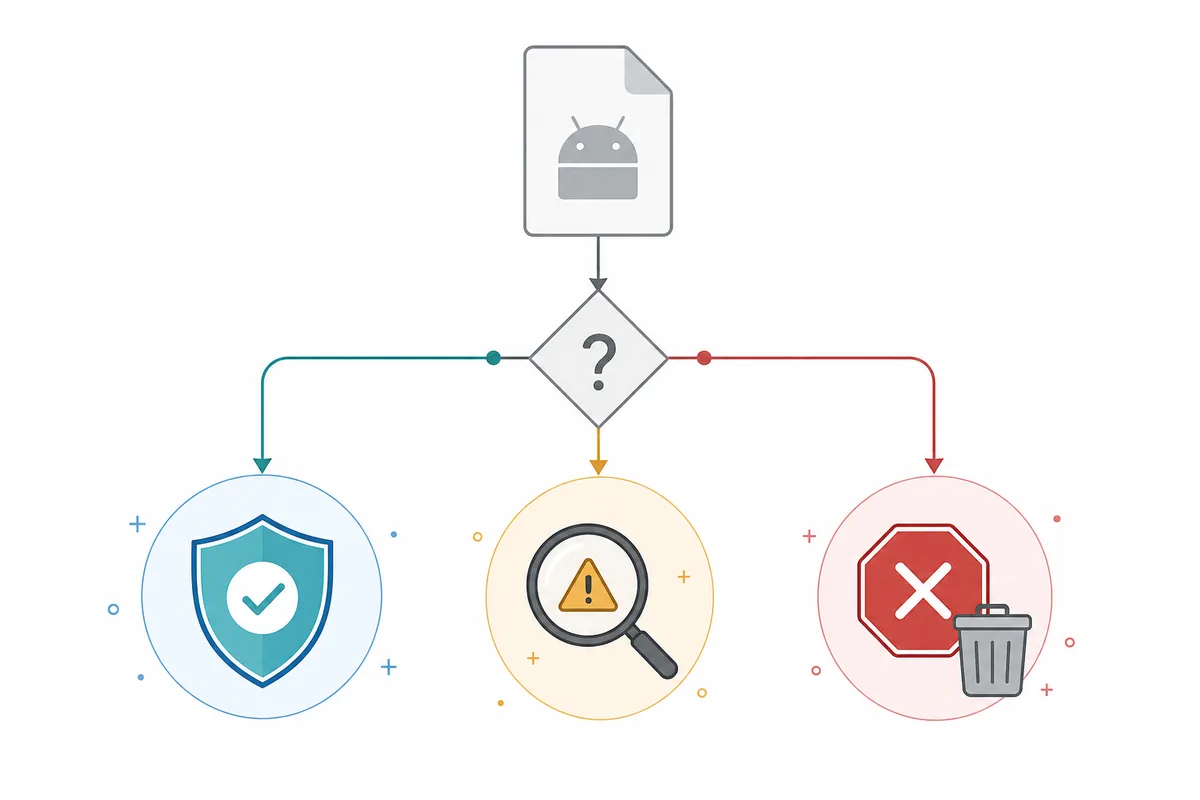
Compare the domain, package, version, size and permissions with a source that can be checked.
Protect the device
Keep Play Protect on, revoke unknown-source access after testing and avoid entering credentials.
Delete when unclear
An unidentified APK is not made trustworthy by a new filename, code or video.
If you already installed a file, review the warning signs
Open the Android app information screen and compare the visible name, package, version, permissions and installation source with the page you used. If the details do not match, stop signing in. Do not assume a playback error means that a new APK is needed; the issue may be the network, the device, the server or a stale file.
Unexpected pop-ups outside the app, repeated redirects, aggressive requests for accessibility, unusual battery use or prompts for unrelated personal data are reasons to uninstall and run a security review. Change any password entered into the app, revoke the browser or file manager permission to install unknown apps, and remove the downloaded file.
A careful record makes future troubleshooting safer. Note the device model, Android version, exact error text, source domain and package identifier. Then use a platform-specific guide or an established service instead of passing the APK to someone else as an official download.
| Warning sign | First action | Do not do |
|---|---|---|
| Unexplained permission | Deny it and inspect the source | Accept it by habit |
| Pop-ups or redirects | Uninstall and review security | Enter payment details |
| Unknown package | Delete the file and record the URL | Share it as original |
| Playback failure | Check device, network and version | Download random mirrors |